Scanning
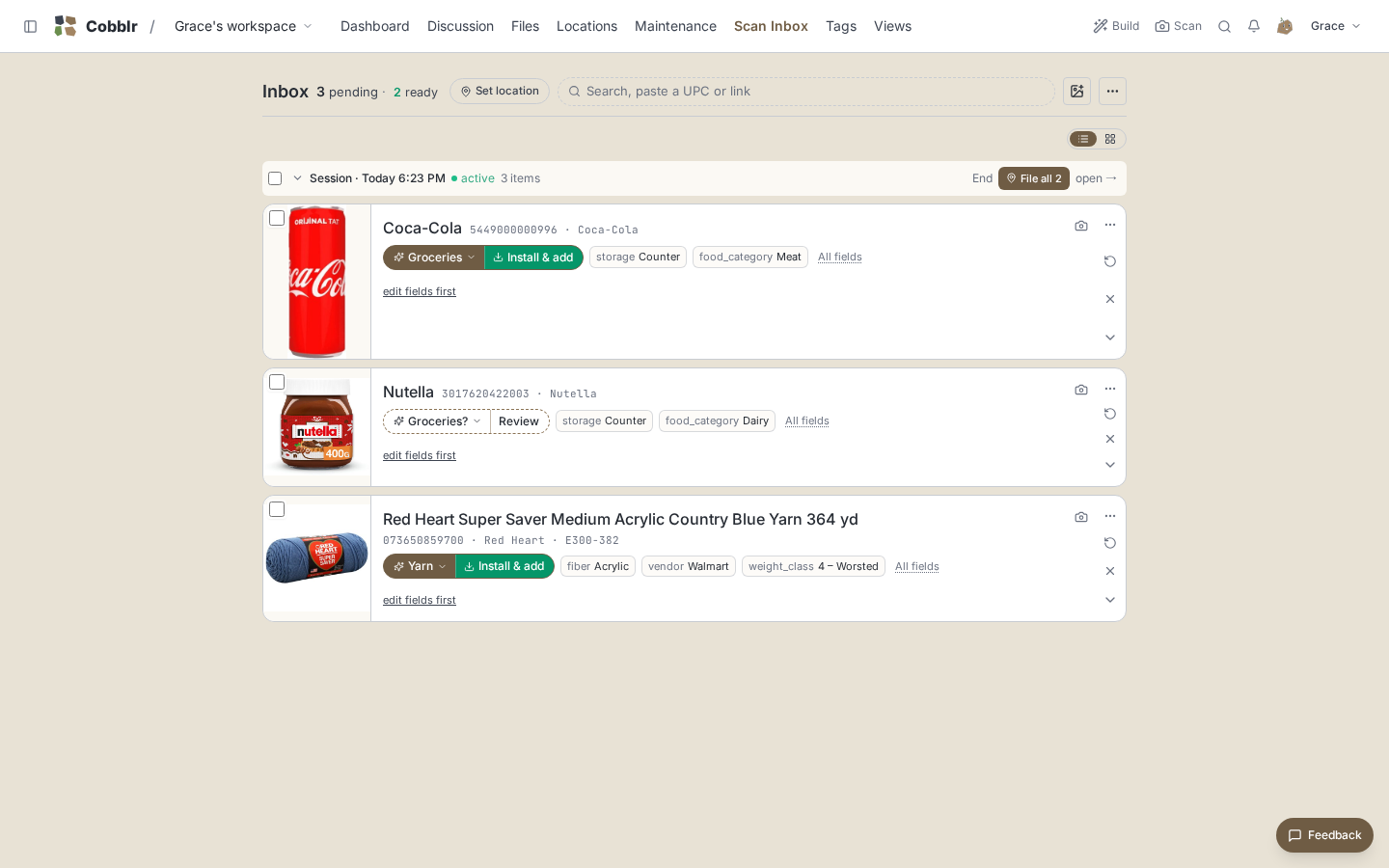
Point your phone at a barcode, or take a photo of something without one, and Cobblr works out what it is. You confirm and file the result in the Scan Inbox.
The loop:
- Open the scanner (the camera button in the top bar on your phone).
- Hold it on one barcode after another. It reads continuously, no shutter. Press the shutter only for something with no barcode.
- Everything lands in the inbox. The camera never files anything, so you can shoot a whole shelf without stopping.
- In the Scan Inbox, confirm each item (or a whole batch) into one of your tables, with a location.
What to point it at
Could you find a picture of this thing on the internet? Then Cobblr probably can too. Stop at the first step that applies:
- Still have the packaging? Start there. The box usually has a barcode and says exactly what the item is.
- A barcode on the item itself? Scan it.
- Writing or a label that says what it is? Photograph that: the model name, the spec sticker, the tag.
- None of the above? Take a picture of the item itself and Cobblr will try to work out what it is.
A barcode is looked up in product catalogs, and a photo is identified by vision. Nothing is saved until you confirm it. Scan the pile first, sort it afterward.
The camera
- The capture drawer appears above the shutter after every shot: the photo, the name once identified, a quantity stepper, and Undo for a mis-scan. Ignoring it is fine. Swipe it up for the full sheet: cover photo, name, quantity, and location while the thing is in your hand.
- + Photo arms the shutter so the next shot joins the item you just captured instead of becoming a second record. Retake replaces the photo and re-identifies.
- A barcode result shows as a Scanned sheet: Save & next, Discard, or Not it, retake (re-identifies from your own shot). All three work the instant the sheet opens, even mid-lookup.
- Light and zoom handle themselves: auto-flash, auto-zoom, any angle. Manual flash sits next to the shutter.
Camera details: what each control does at the edges
Reading a barcode also keeps the picture from that instant, so one scan gives you the code and a photo. The photo is what tells a single unit from the nine-pack carrying the same UPC, and it reads serial numbers or service tags printed nearby.
A photo that fails to save stays in the drawer with a Retry, so a dead spot costs nothing. While a sheet is open the viewfinder dims and barcode reading pauses, so a stray code can't interrupt an edit. The next capture always starts with the sheet closed. While + Photo is armed the shutter turns gold and barcode reading pauses (labels usually carry codes of their own). A code that isn't a product barcode (a serial, an asset tag) gets no guessed name. The photo does the identifying.
Auto-flash turns off when the scan lands or lighting improves, waits out passing shadows, and stays off for the session if you switch it off by hand. Auto-zoom steps gently, holds while reading, and widens when nothing is in view.
If scanning misbehaves on a device, add ?diag=1 to the scanner URL for a live
readout (decode engine, lenses, autofocus, zoom and torch support, decode
timings, one tap to copy). ?zoom=N fixes zoom by hand, ?scandelay=N and
?lens=... try a different cadence or lens.
Scanning a VIN
Point the camera at a car's door-jamb barcode and you get a record already named ("2022 Toyota Corolla Hatchback") with make, model, year, body, trim, fuel, and the color read from the paint code on the same label. Typing a VIN into a vehicle form fills the same fields.
How VIN decoding behaves
The 17-character VIN identifies the exact car. The details come from a lookup against the free NHTSA database. The code's shape decides the route, so a UPC still heads to the product catalogs. Only empty fields are filled, nothing you typed is overwritten, and a bad or partial VIN says so instead of guessing. A garbled scan is repaired only when the VIN's own check digit proves the fix. Works on the Vehicles bundle and any table with make, model, and year fields.
Serial numbers
A serial or service tag the photo can read files into the item's Serial number field, exactly as printed. The reverse works with no setup: scan a serial you already track and Cobblr opens that record. If two things share the serial, it asks which you're holding. The field is relabelable per table ("Service tag", "VIN").
The inbox
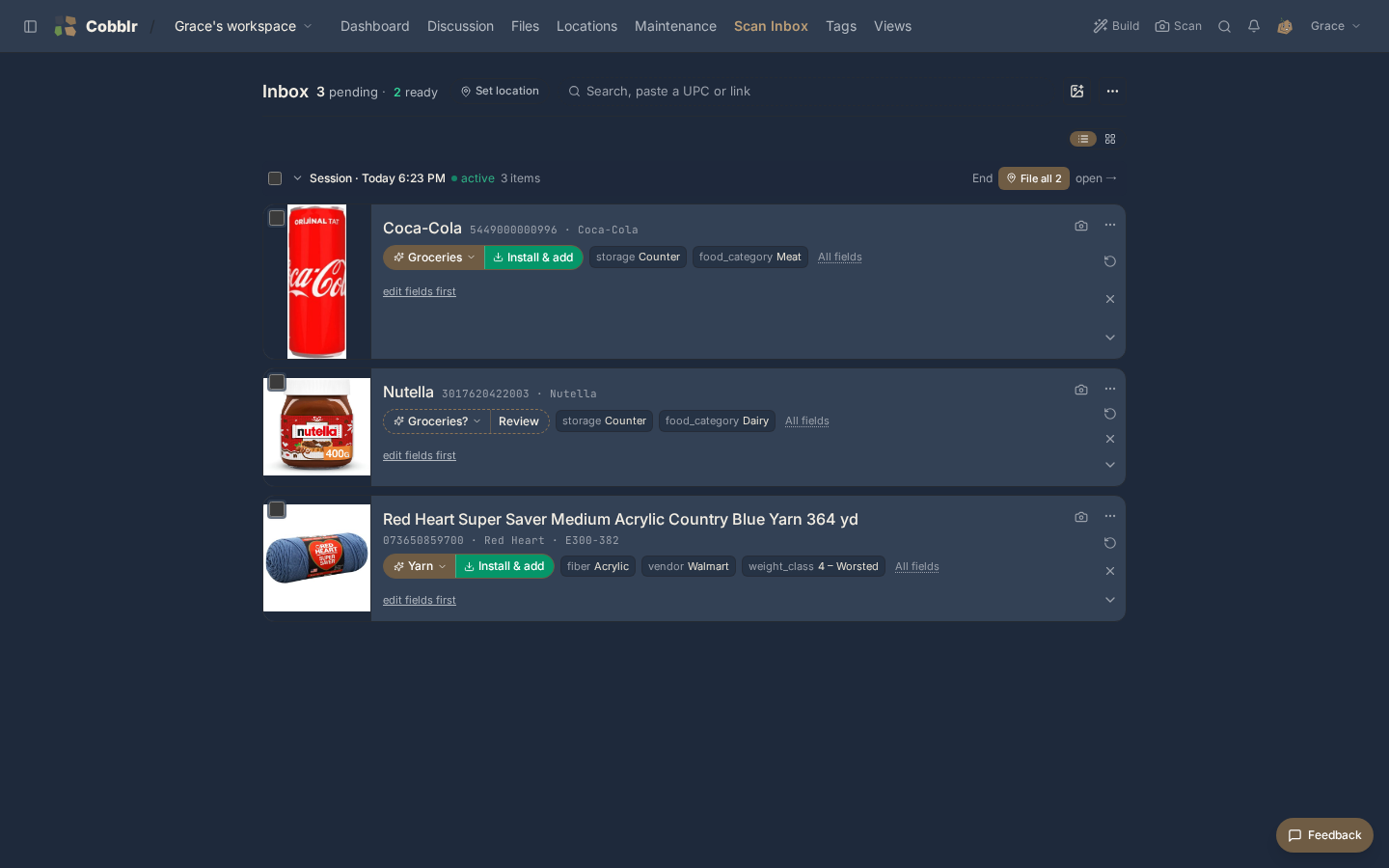
Confirm each item into one of your tables (the picker lists what your workspace actually has, like Yarn or Parts), with a location.
- The header counts are filters. "8 pending · 5 ready · 3 to review · 2 waiting 2d+": tap one to see just those.
- Set location says where the next scan files, and offers the same location to items that have none.
- One box searches and ingests: type to filter, paste a UPC or links to add them, or drop a file (images become captures, a PDF or CSV becomes a receipt). The upload button takes both kinds too, and the file settles which.
- A session files as a batch: once identification settles, the header button reads File all 3 into Clothing, or Place & file all when some items still need a location. Items needing a manual look aren't swept in.
- Scan the same code twice and the row's count bumps to ×2 instead of piling up, with a +/- stepper to fix a miscount.
- Rarer tools live behind the ⋯ menu and, per item, a More menu (Split into items, Retake for catalog, Turn into a bin).
Once things are captured, putting them away has its own page: the sorting plan, the put-away walk, and Live Sort.
Inbox details: cards, splitting, moving an inbox
Expanding an item shows just what review needs. The full add form, with every destination field, appears only after you pick a destination. Photo controls sit on the photos themselves: rotate, use as catalog, back to original, and an add tile at the strip's end.
The card is honest about how it got a guess: a route from incidental keyword matches renders as an outlined, tentative chip with no one-tap Add, and batch filing skips it. When AI is configured but the model didn't answer, the card says so and offers a one-tap retry.
When one photo holds several different things, the card offers to split them into separate entries, each cropped and sent to find its own image. Several of the same thing stays one row with a quantity. A stack from one series gets an offer to tag the whole set.
A whole inbox moves between workspaces or installs: Export to a file, Import on the other side. Everything travels: photos, history, your typed hints, and each item's session, receipt and all.
On a desktop the upload button sits beside the camera button (live scanner vs shots you already have). A phone's row has no camera button because the app's top bar already has one.
Turning a tote into a bin
When a scan looks like a storage container, its card offers Turn into a bin: one tap creates a container location ("Bin N", renameable), keeping the product's photo, barcode, and brand on the bin's record as its identity. Your name for the bin is never overwritten by the product name. Create & scan into it also makes the new bin the standing file location, so the next scans land inside it.
Categories
Five electrical parts land in one table, told apart by a category, instead of scattering across look-alike tables. Anything placed without confidence goes to your catch-all table, tagged with its category.
How the category list stays clean
The list starts empty and grows only from values you confirm, and a near-miss snaps onto a value you already use. Within one session the batch agrees on a single category, so "apparel" and "clothing" file together under the broader label. Case and plurals count as the same. Filing one item at a time still uses that item's own category. A category that outgrows the table can be promoted into a table of its own.
Things you already track
Scan something you already have and an "Already tracked" banner appears instead of a quiet duplicate:
- Everyday stock: +N to it (add to the count), Move here (file into the bin you're standing at), or Link barcode (teach the item this code).
- A one-of-a-kind thing (a vehicle, a tool): "is this the same one?" and a merge that fills only blank fields, so nothing you entered is overwritten.
Buying more of something
Adding to the count asks one question: this buy was as usual, a one-off, a stock-up, or going quicker lately, so a party's worth of one item isn't read as your new weekly rate. If the numbers say you should still have some, it first asks what happened to the ones you had? (still have them, used them faster, they went bad), because eaten and thrown-out look identical in a count and mean opposite things about how much to buy.
Correcting a scan
- Wrong name? Type a research hint ("it's the 5 mm one") and hit Re-run AI. The hint keeps applying to every later re-run, so you never type the same fix twice.
- Wrong barcode? Tap the pencil next to the code (or Add barcode on a photo item), type the digits off the label, Save & re-run.
- Re-run came back worse? The card kept what it had. Put it back restores the earlier answer.
- Identification fine, but a field or the table wrong? Replay (no AI) redoes everything except the model call, reusing the last answer. It costs nothing.
- Filed or discarded by mistake? Recently deleted has a Restore, and Recently committed has a Send back that returns it to the inbox and removes the record it created.
Correction details: hints, colours, and honest history
Corrections build on each other ("color: black", then "it's the loose fit"). two different colours and the newer wins. A hint naming a code works ("correct barcode 5060218983330"), and a bare 12 to 14 digit number counts when its check digit proves it real. Each added photo carries a ↺ button that re-identifies from that shot.
A known colour goes into the name ("…T-Shirt, Black") and correcting the colour corrects the name. A brand whose own name contains a colour word is left alone.
The item's history shows which runs used a hint, and marks a run no model answered as the AI didn't answer, so a disappointing result reads as "the keyword match stood in" rather than "this was the AI's best". One wants a retry, the other wants a hint.
Where a scan result comes from
A barcode works down a chain, and the first tier that answers wins. That is why one install answers a code another misses.
- The check digit is verified first, so an impossible code is an honest miss, not a confident wrong product.
- What this install already knows: a code scanned twice costs nothing the second time.
- A shared resolver on your own network, if the operator runs one. Its answer is final.
- The barcode network, if the operator joined it: open data plus corrections from other installs. A miss falls through, so joining never costs an answer.
- Third-party catalogs, each switchable with its own key, all behind a master switch. Off means no barcode ever leaves the box.
A throttled tier is never remembered as a miss, so one busy moment can't poison a product's record, and a later rescan tries properly.
Choosing the catalog photo
An identified item comes with a strip of product photos, best first. The free ranking always runs and understands colour, so a red variant stops winning for something you know is black. For a harder call, ✨ Pick best (AI) has a vision model pick the cleanest catalog shot, badged with a one-line why. Tap any other photo to override.
What Pick best weighs, and the auto-pick switch
It weighs the product on its own (no hands, faces, or tag-only shots), then the correct colour using your scan photo as reference, then studio over lifestyle. It costs more AI than the free ranking, runs only when pressed, and needs a provider under Configuration → AI.
Auto-pick photos (owner/admin) does the same for every newly identified item. It lives in the AI configuration page's Scan photos section and the inbox's ⋯ menu, is off until you turn it on, and is careful about spend: never replaces a photo you picked, never pays twice for the same item (a re-run re-picks only when your correction changed the question), and skips filed, discarded, unnamed, and single-photo items.
Receipts and email
A receipt is a whole haul. Hit Receipt on the scan page and pick a CSV,
PDF, or photo of one: the vendor, date, and every line item drop into the inbox
as their own labeled session ("Receipt · Northside Hardware #384602"), which
reads and files as one thing. Or forward it by email: the scan page shows a
receipts+…@ address (tap Copy), and the body-only store receipt with no
attachment works too.
- Original opens the source full screen. Re-parse re-reads it and replaces still-pending lines. + PO# sets or fixes the order number.
- A till abbreviation ("SHRD MOZZ 8Z") matches the part you already have and offers to add to it, instead of a second part every shopping trip.
- With Purchases enabled, one tap rolls a receipt into a purchase order, and several waiting collapse into Confirm all.
- Emailed receipts always answer back with what landed, and are stored the moment they arrive, so a processing hiccup never loses one.
Receipt details: parsing, duplicates, standing addresses
Most receipts read without AI: a CSV or ruled table parses directly, and a plain till receipt is read line by line for free, trusted only when the lines add up to the receipt's own subtotal, so it can't hand you a confident wrong price. A photo falls through to a vision read, and a text receipt whose arithmetic doesn't reconcile falls through to an AI text read.
Re-importing the same receipt (same store and order number) warns instead of duplicating, with Import anyway if you mean it. A receipt with no order number is never treated as a duplicate. A line with only a name can still fetch a product image or re-identify from its own re-run button.
A workspace admin can wire a standing inbound address that vendors and systems send to on their own, so order confirmations arrive as confirm-ready rows with nobody forwarding anything. Both addresses need setting up by an admin or the operator, and until then they don't appear.
A hardware scanner
Plug in a USB or Bluetooth barcode scanner and every Cobblr page picks it up: scan a UPC from anywhere and it lands in the inbox, with a toast that jumps you there. Get a 2D scanner (reads QR codes too, which drives the filing funnel). See Barcode & QR scanners.
Your phone and your desktop
At a desktop, hit Pair phone: the desktop shows a QR, you scan it, and the phone is signed in on the spot, no password typed. Everything it scans lands in the inbox your desktop is showing.
Privacy
Barcode lookups reach third-party catalogs. Self-hosted, you control exactly which, or turn them all off. The optional shared barcode reference is off by default. See Self-hosting -> Privacy.